The problem
Event libraries grow to tens of thousands of files with names like IMG_4417. Nobody can find the shot they need, or say which ones to keep.
Who it is for
Teams that keep a large photo and video library in Google Drive and need to find and sort it.
How it works
Three steps
Point it at a folder
Sign in with Google and pick the Drive folder. Slate only reads.
It describes everything
Each photo and video gets a plain-language description, near-duplicates are grouped, and the event date comes from the folder.
You get one sheet
One row per asset: link, event date, description, duplicate flag and a Keep? column for the client to fill in.
Real screens
Straight from the app
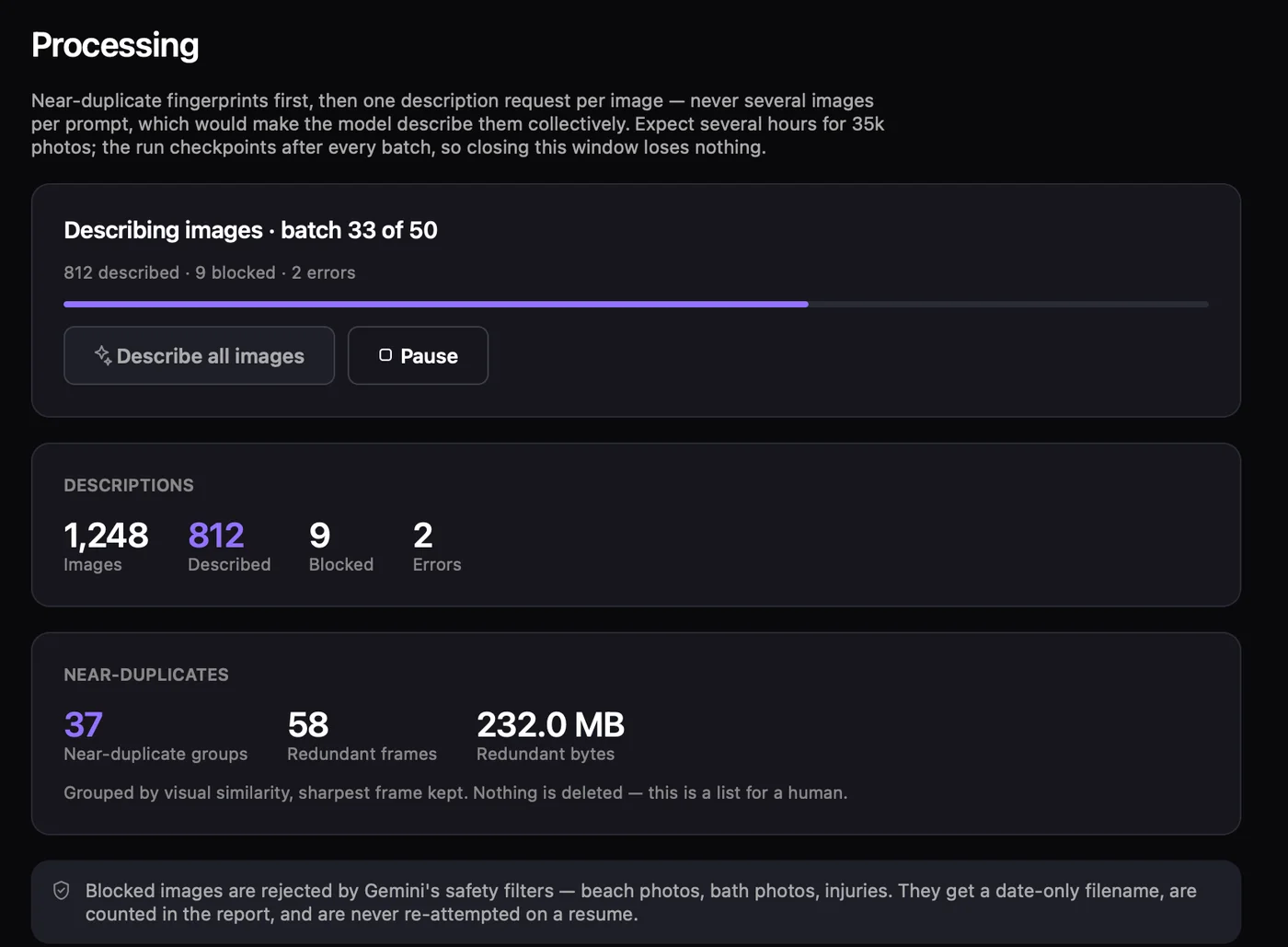
Slate while it describes a library. Sample data.
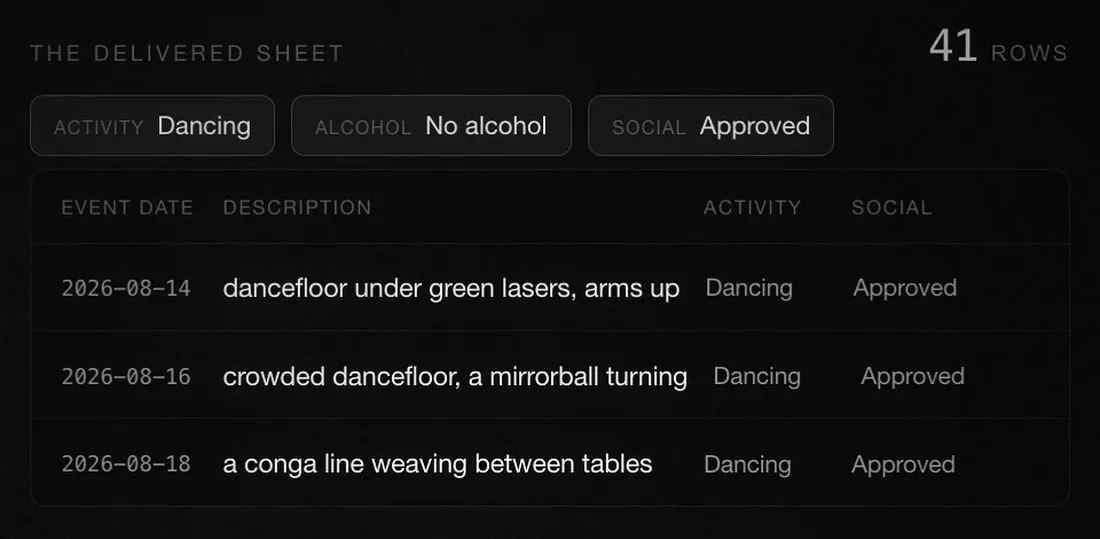
The delivered Google Sheet. Sample data.
What it does
Main features
Never touches your Drive
Read-only from start to finish. Your library is not changed.
One row per asset
Photos and videos together, told apart by a Type column.
Descriptions you can search
Written by Google's Gemini, one image at a time.
Near-duplicates grouped
The sharpest frame is kept in view. Nothing is deleted; the list is for a person.
A Keep? column
Free text, so the client can say what they don't want kept and you can read it back.
Safe to stop
Every pass saves its place, so a long run can be stopped and picked up again.
Sign in with Google
You choose the folder; Slate gets read-only access to it and nothing more.
Built for operators
A step-by-step wizard, not a command line.
What it connects to
- AtlasConnecting soon
- VectaConnecting soon
Where it runs
Made by MARKETIVE HUB SRL.
Send us one folder
Share a sample folder and we'll return a catalogue of it as a Google Sheet, free.